


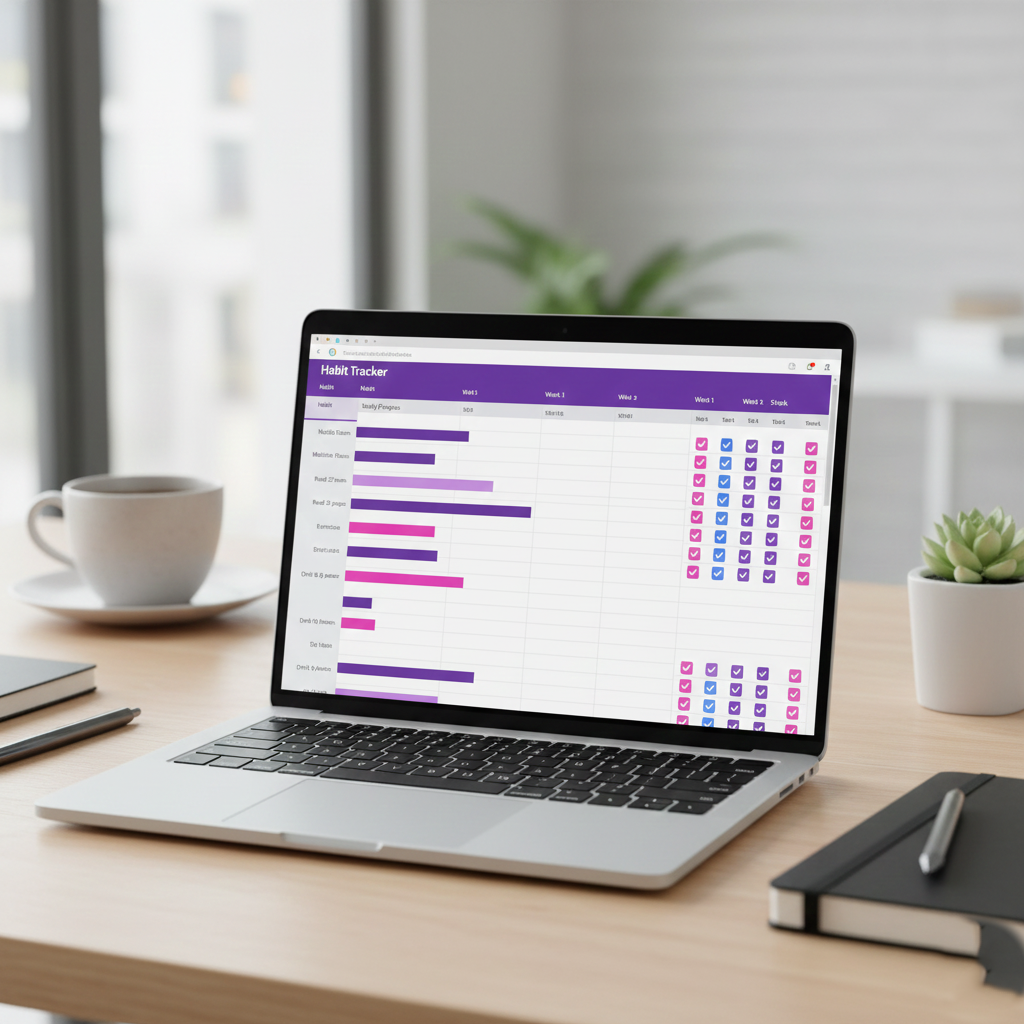
Why Build Your Own Tracker?
While there are many apps for habit tracking, nothing beats the flexibility of a custom Google Sheets dashboard. In this tutorial, we move from a blank spreadsheet to a fully functional, aesthetic tool that tracks your progress automatically. Whether you want to monitor 5 habits or 15, this method scales perfectly to your needs.
Why Build Your Own Tracker?
While there are many apps for habit tracking, nothing beats the flexibility of a custom Google Sheets dashboard. In this tutorial, we move from a blank spreadsheet to a fully functional, aesthetic tool that tracks your progress automatically. Whether you want to monitor 5 habits or 15, this method scales perfectly to your needs.
1. Setting the Foundation
The first step is setting up a clean structure. Instead of typing numbers manually, you can use the SEQUENCE formula to automatically generate your habit list.
- Pro Tip: Always select the entire sheet and set your alignment to “Middle” and text to “Wrap”. This ensures that as you type longer habit names, the rows adjust automatically without breaking your design.
2. Dynamic Dates and Smart Formatting
A great habit tracker should be easy to update. By using Data Validation, you can create a cell that opens a calendar with a double-click.
- Automation: Once you select the start date, use a simple formula (e.g.,
=D3+1) to automatically populate the next 31 days. - Aesthetics: To keep the sheet compact, use Custom Date and Time formatting to show only the day number (e.g., “1, 2, 3”) and the abbreviated weekday (e.g., “Mon, Tue”).
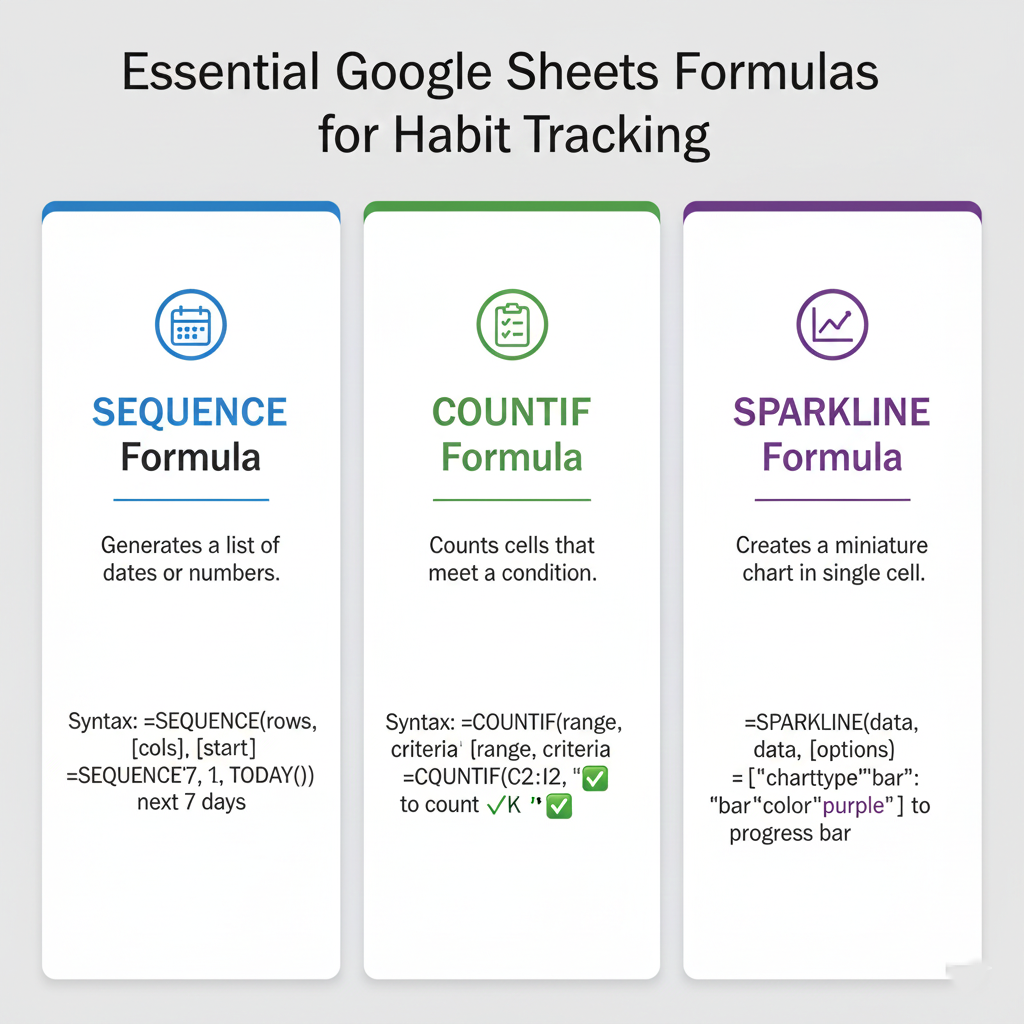
3. Tracking Progress with Checkboxes and Sparklines
Once you’ve inserted your checkboxes, the real magic happens with formulas.
- COUNTIF: This formula counts how many boxes are “True” (checked) to calculate your completion percentage.
- Horizontal Progress Bars: The
SPARKLINEformula allows you to create a visual bar within a single cell that fills up as you check off tasks. You can even customize these bars with specific hex codes to match your personal brand.
4. Daily vs. Monthly Overview
The tutorial also covers vertical progress bars. These bars track your daily “all-in” completion, showing you which days were your most productive. By using the COUNTA formula, the sheet knows exactly how many habits you are currently tracking and adjusts your daily percentage accordingly.
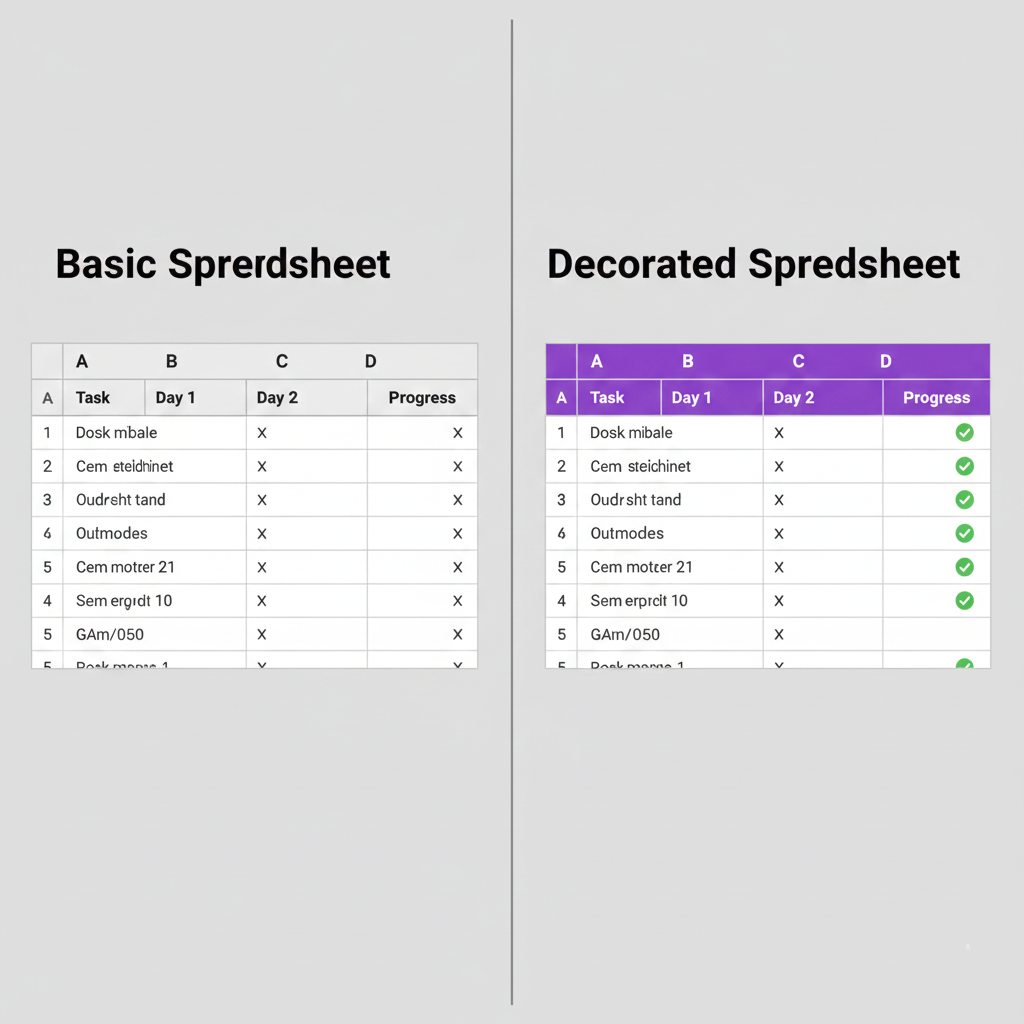
5. Final Touches: Design and Warnings
To make the tracker truly “pro,” remove the default gridlines and add custom, light-gray borders.
- The “Error” Warning: One of the best features is a Conditional Formatting rule that turns a row red if you check a box for a habit that hasn’t been named yet. This keeps your data clean and prevents “ghost” tracking.
Start Tracking Today
Building your own tracker is more than just an organization project; it’s a way to master Google Sheets while improving your life. Once your tracker is built, you can reset it instantly by copying a blank checkbox over your old data.
Watch the full tutorial here:















Leave a comment