


Why Run Local AI Video?
The primary advantage of local AI is freedom. Cloud-based services can be restrictive, but with local models, everything stays on your computer. Your creations are private, and you are only limited by your hardware’s capabilities. With recent breakthroughs, local models like LTX-2 can now produce results comparable to industry leaders like Google’s Veo or OpenAI’s Sora.
System Requirements
AI video generation is resource-intensive. To run these models smoothly, you will need:
- GPU: An Nvidia GPU is highly recommended.
- VRAM: At least 6 GB to 8 GB of Dedicated GPU memory to get started. Higher VRAM (12 GB+) allows for longer clips and better resolution.
- Disk Space: Some models require up to 40 GB of space for model weights.
Simplifying AI with Pinocchio
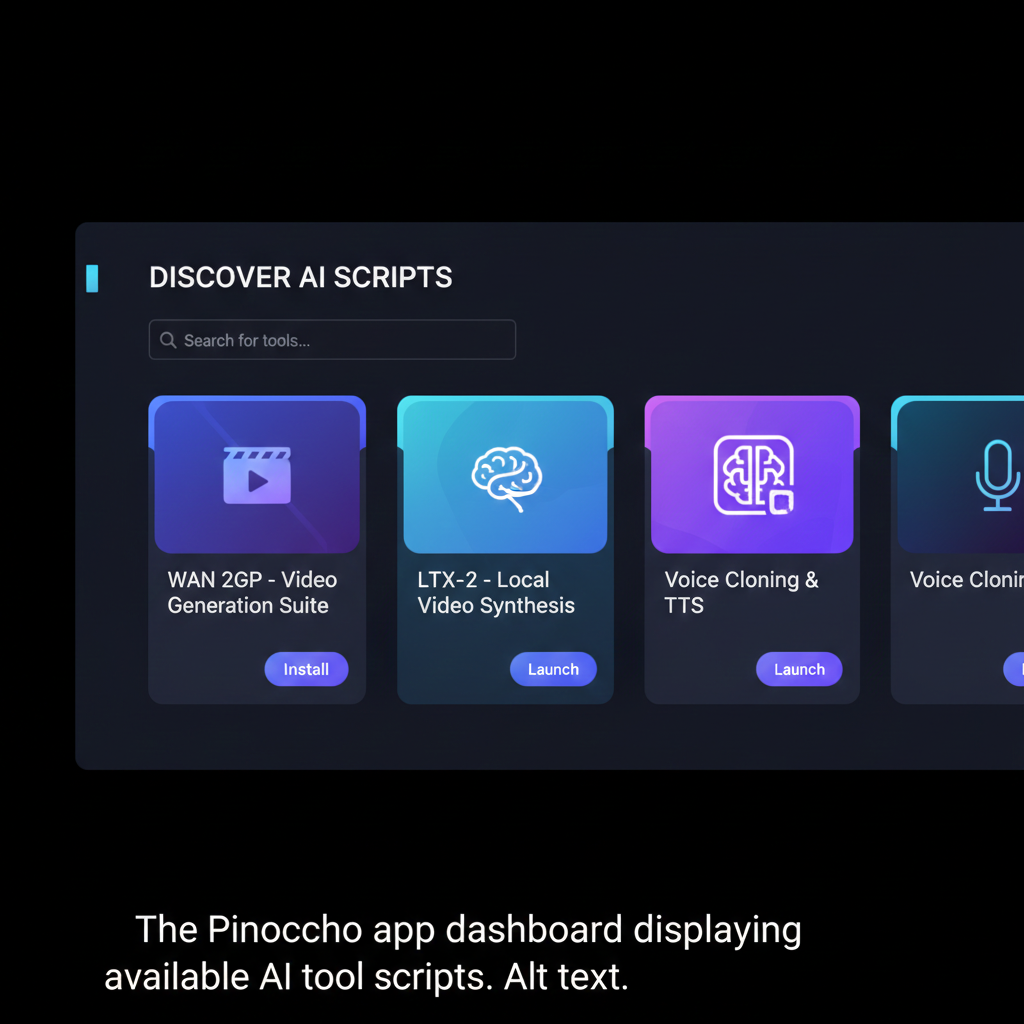
Manually installing AI dependencies like Python and CUDA can be a technical nightmare. Pinocchio acts as a “one-click installer” for AI tools, similar to how Steam functions for games. It handles all the background dependencies automatically, making complex open-source scripts accessible to everyone.
Setting Up the WAN 2GP Script
Once Pinocchio is installed, you can search the “Discover” tab for a script called WAN 2GP. This script is a versatile hub that allows you to run multiple popular video models in one interface. After a simple installation process, the tool launches a web UI where you can begin your creative work.
Configuring the LTX-2 Model
The LTX-2 model is particularly impressive because it can generate audio, music, and narration alongside the visual video output.
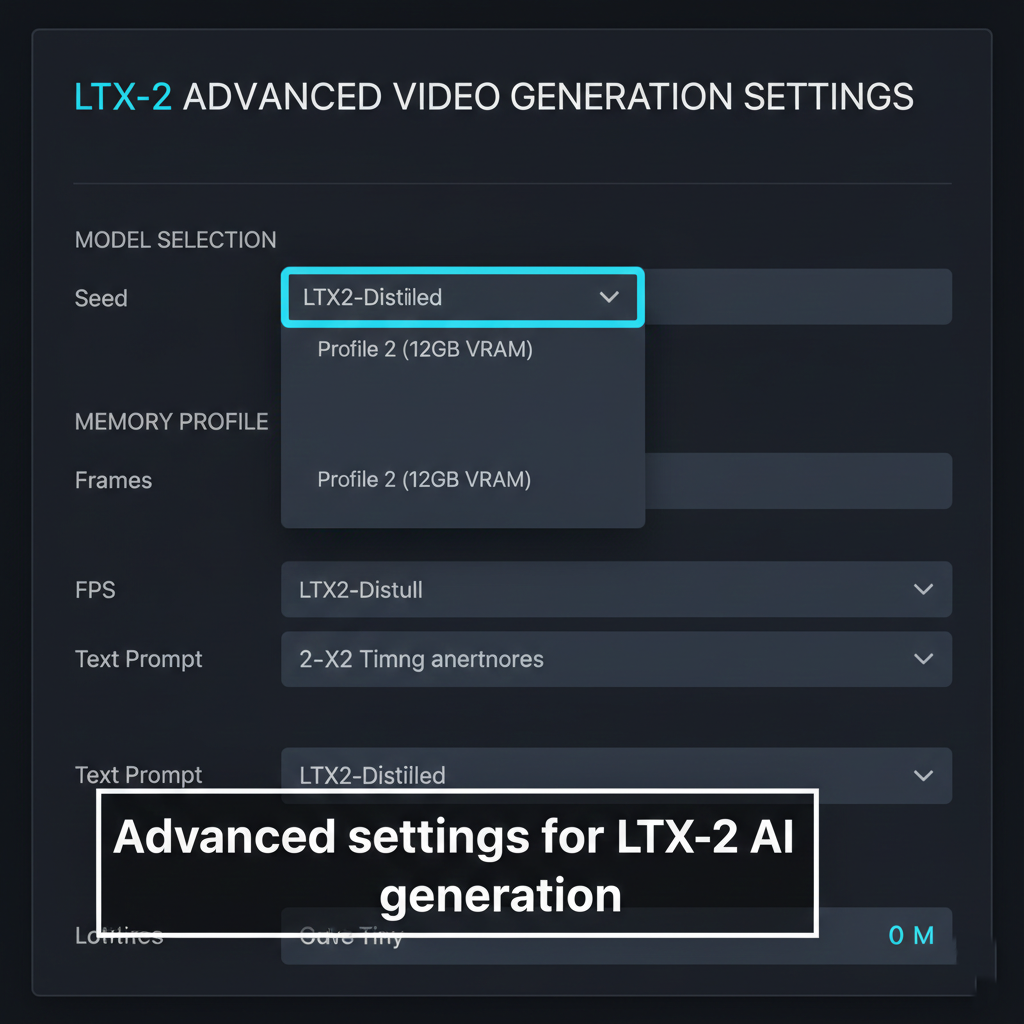
- Model Versions: For most consumer GPUs, selecting the distilled version is recommended. It is about half the size of the full model (approx. 20 GB) and offers faster performance with a minimal drop in quality.
- Memory Profiles: Within the configuration settings, you can choose a memory profile that matches your hardware. Profile 2 is generally ideal for users with roughly 12 GB of VRAM.
Generating Content: Text and Images
The local interface offers several generation modes:
- Text to Video: Describe your scene in detail. You can even include narration cues (e.g., “She says: ‘The cookies will tell us when the time is right'”) to trigger the model’s speech generation capabilities.
- Image to Video: Upload an AI-generated or real photograph to use as a starting frame. The model can then animate the scene based on your prompt, such as a character walking toward a castle while snow falls.
- Video Extension: You can provide an existing video and ask the AI to continue the action.
Managing Your Creations
Because this runs locally, your generated files are stored directly on your hard drive. Within the Pinocchio project folder, you can navigate to the app/outputs directory to find all your MP4 files. This ensures you never have to worry about a cloud service deleting your history or losing access to your work.




Leave a comment