



Why Choose IP Cook?
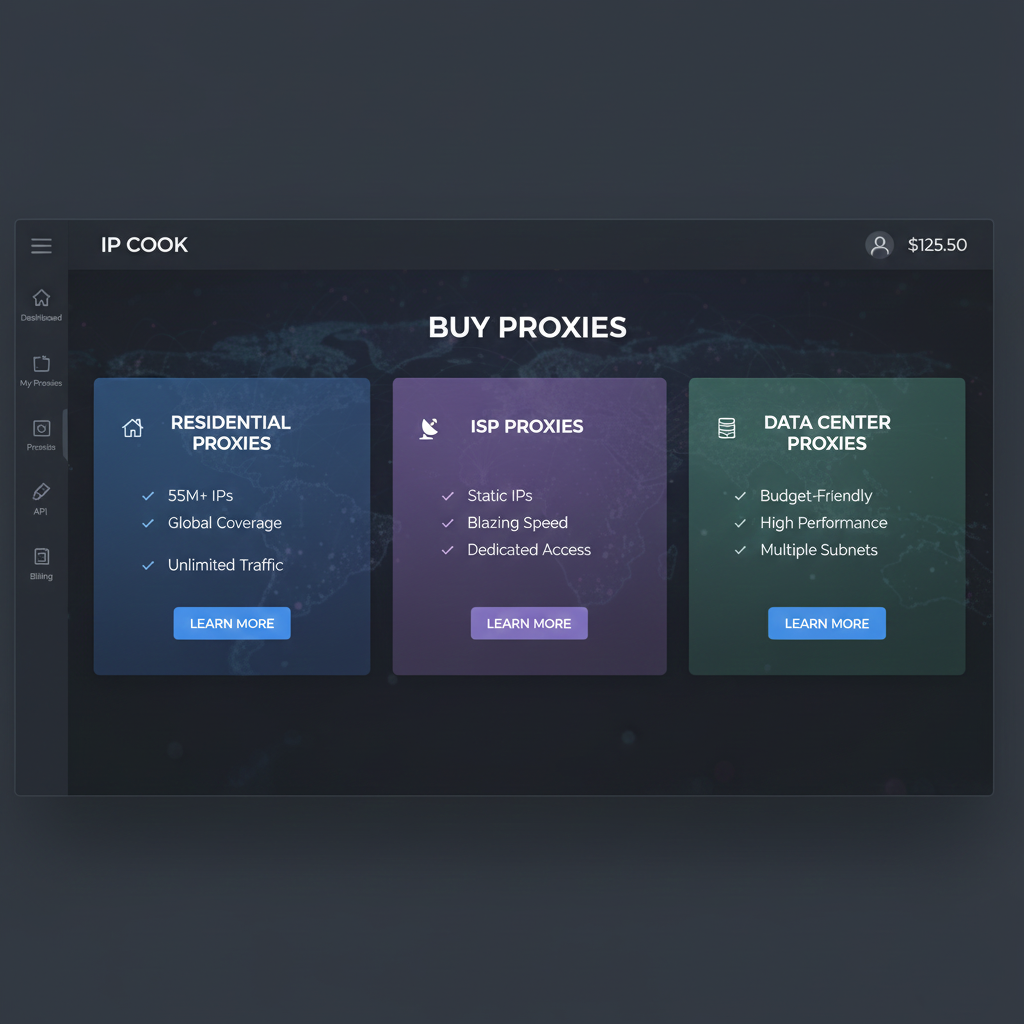
IP Cook is a comprehensive proxy platform offering premium performance across a staggering 55 million+ residential proxies. Beyond residential options, they provide ISP and data center proxies tailored for high-speed tasks like web scraping, search engine monitoring, and email protection. With 24/7 customer support, it’s a robust choice for both beginners and power users.
Funding Your Account: A Step-by-Step Walkthrough
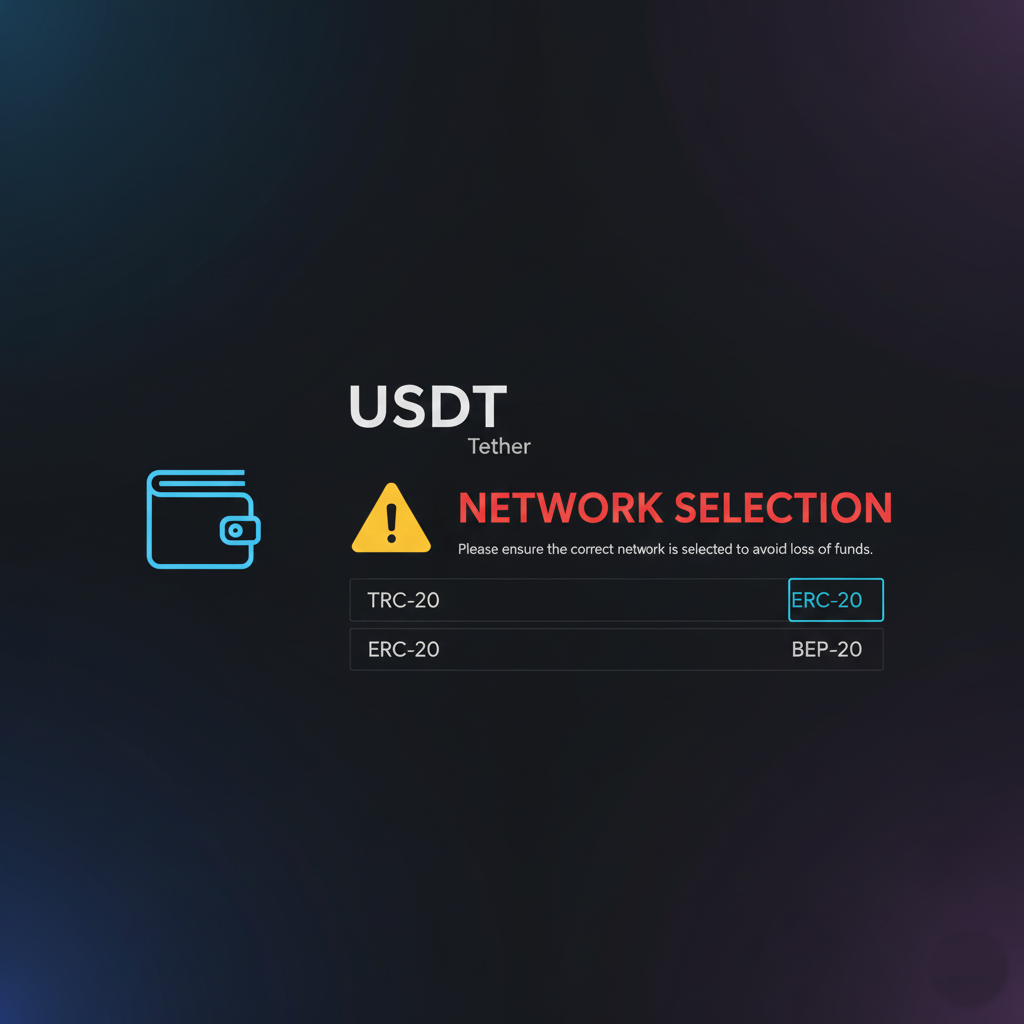
To get started, you’ll need to fund your account with a minimum of $20 USD. IP Cook offers several payment methods:
- Credit/Debit Cards
- Cryptocurrency (USDT): This is often the preferred method due to lower processing fees compared to cards.
- Google Pay & AliPay
Important Tip: If you choose the crypto option, ensure you select the correct network (e.g., TRC20 or ERC20) for your USDT. Sending funds via the wrong network will result in a permanent loss of your deposit.
Residential Proxies: Randomized vs. Sticky
When purchasing your residential proxies—be sure to use a promo code for a 10% discount —you’ll need to choose between two main types of rotation:
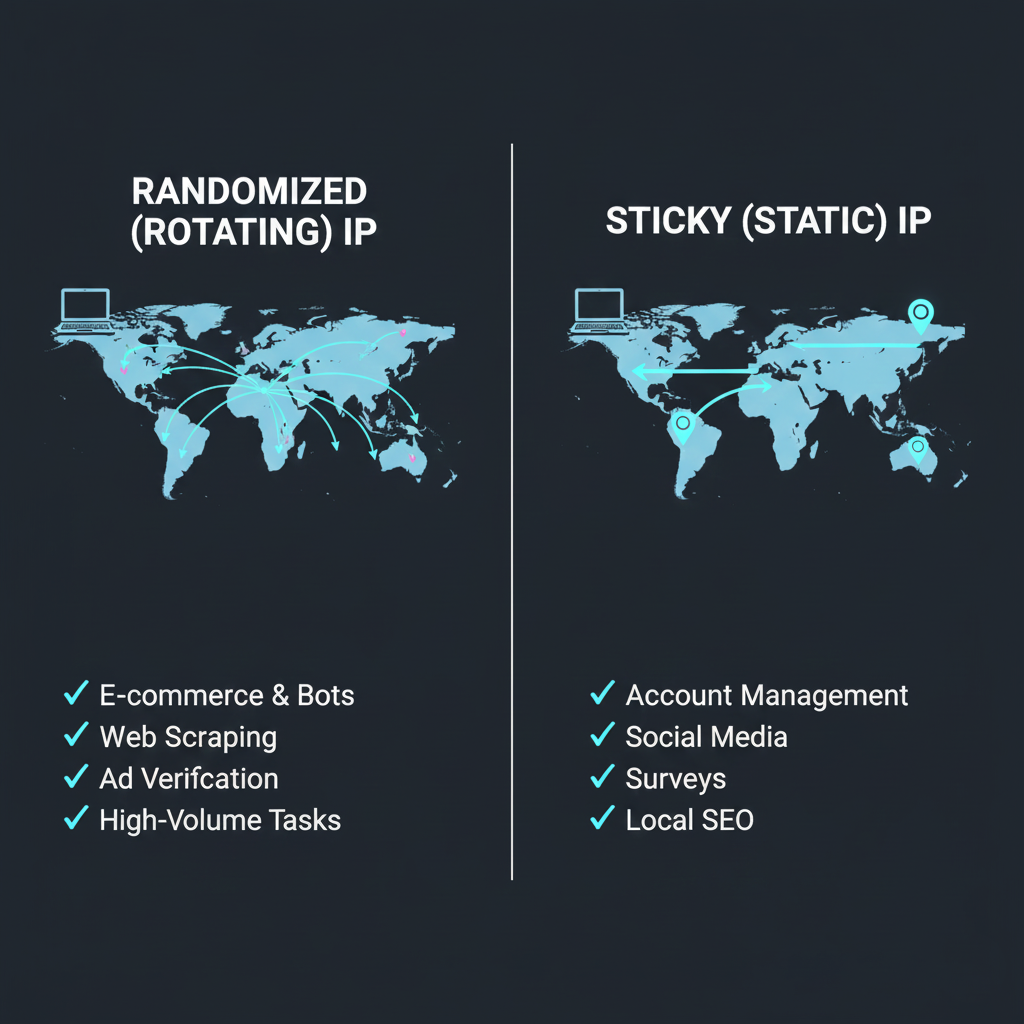
- Randomized IP: This IP changes frequently as you browse, which is ideal for broad web scraping or general browsing.
- Sticky IP: This allows you to maintain a specific IP for a set duration (e.g., one hour). This is highly recommended for surveys or tasks where a consistent session is required to prevent being flagged.
Connecting Your Proxy on PC and Mobile
Once your proxies are generated, connecting them is straightforward:
- On Windows: Go to Settings > Network & Internet > Proxy. Toggle “Use a proxy server” to ON and enter the IP address and port provided by the IP Cook dashboard.
- Authentication: When you first visit a website in your browser, a pop-up will ask for your sub-account username and password. This ensures that only you have access to the traffic you’ve purchased.
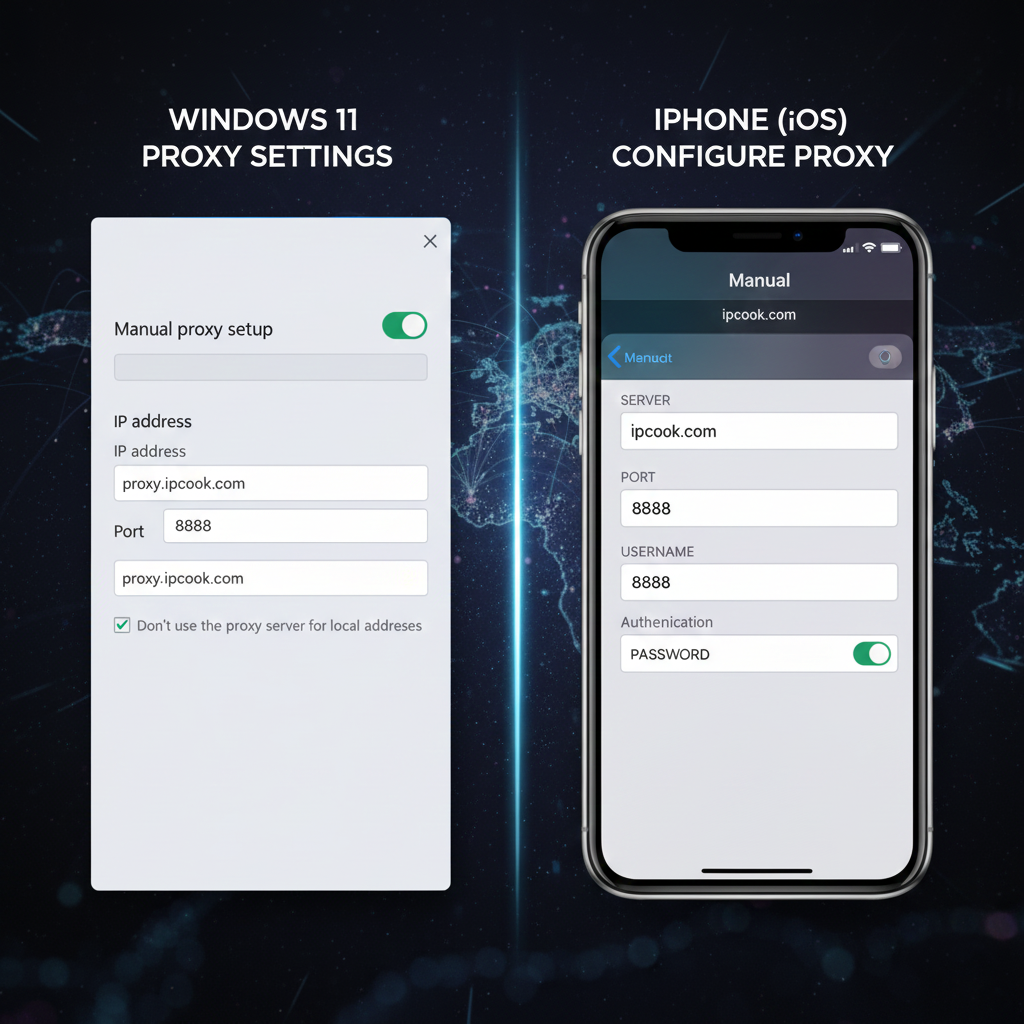
IP Cook uses a single gateway system, meaning the host and port remain consistent while the real residential IPs are rotated seamlessly behind the scenes to ensure stability and anonymity.














Leave a comment